Using CODED FLOWS
Bricks & AI Models Updates
This section explains how to keep your CODED FLOWS installation up to date by fetching the latest brick packages and syncing new AI LLM models and providers.
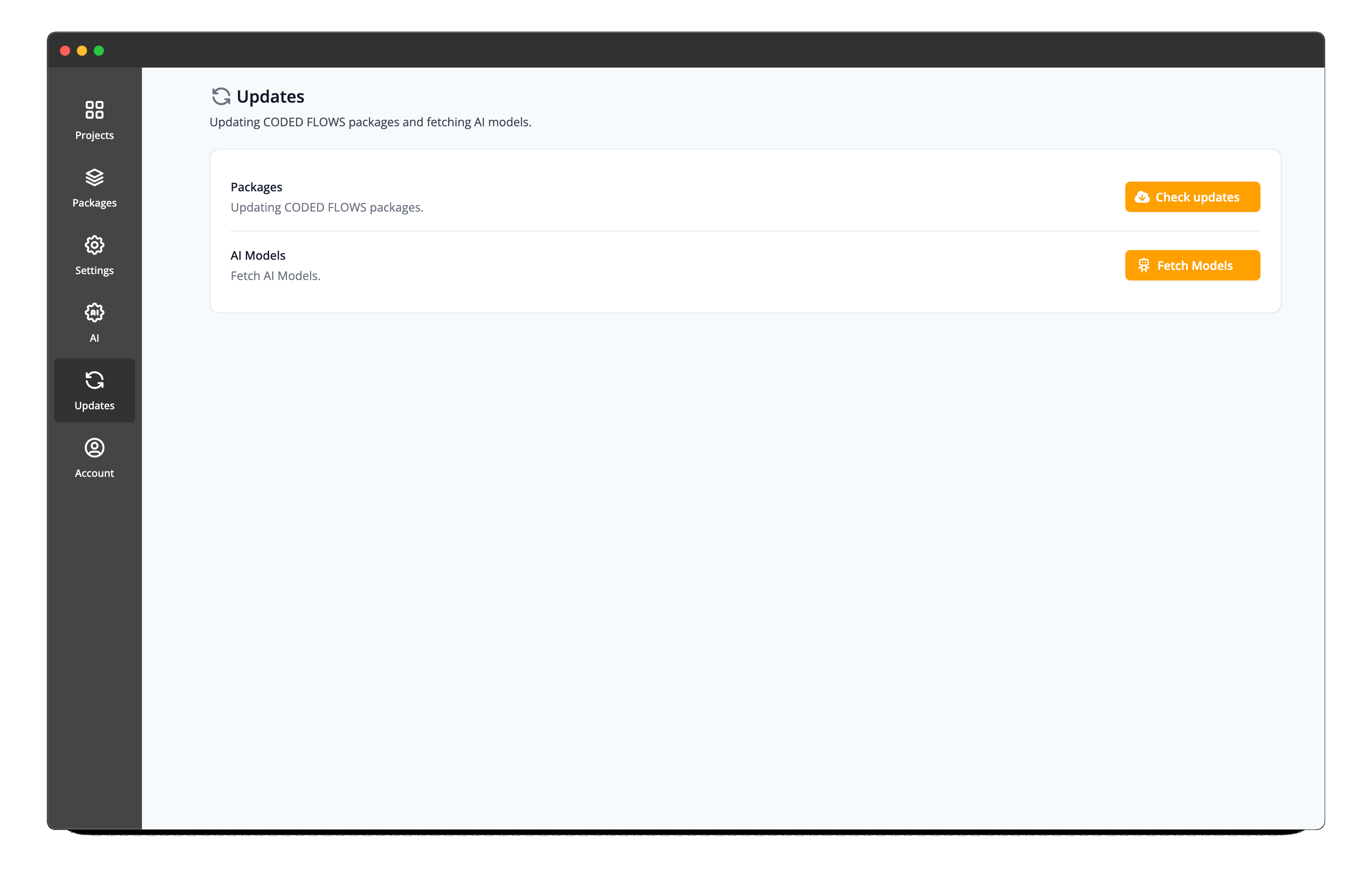
Accessing the Updates Panel
To manage updates and models in CODED FLOWS:
- Open the CODED FLOWS app on your device.
- In the sidebar menu, locate and click on the Updates panel.
Checking for Brick Updates
Brick packages are regularly updated to include new features, improvements, and bug fixes. To ensure you have the latest versions:
- In the Updates panel, click the Check Updates button.
- The app will connect to the server and check if any brick packages have new versions available.
- If updates are found, you'll need to click the install button to download and install them.
- Wait for the update process to complete before continuing to use the app.
Fetching New AI Models
CODED FLOWS supports multiple AI LLM models and providers. As new models become available or existing ones are updated, you can sync them to your local installation:
- In the Updates panel, click the Fetch Models button.
- The app will retrieve the latest list of supported AI models and providers from the server.
- Once the fetch is complete, the new models will be available for use in your flows.
API Keys Required
Remember that to use AI models from different providers, you'll need to configure the appropriate API keys in your CODED FLOWS AI configuration. New models will only be functional once you've added the necessary credentials.